
Widget title goes here.
Meta text goes here.
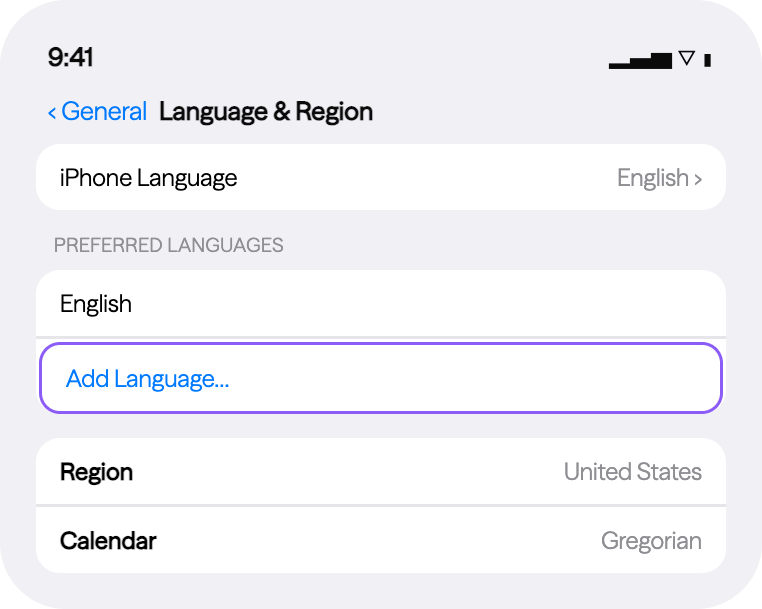
Apple iphone
ENGLISH
- Open the Settings app
- Tap "General"
- Tap "Language & Region"
- Tap "Add Language"
- Select Spanish as your primary language
español
- Abra la aplicación "Configuración"
- Toque en "General"
- Seleccione "Idioma y Región"
- Toque en "Agregar Idioma"
- Seleccione español como preferido
Widget title goes here.
Meta text goes here.
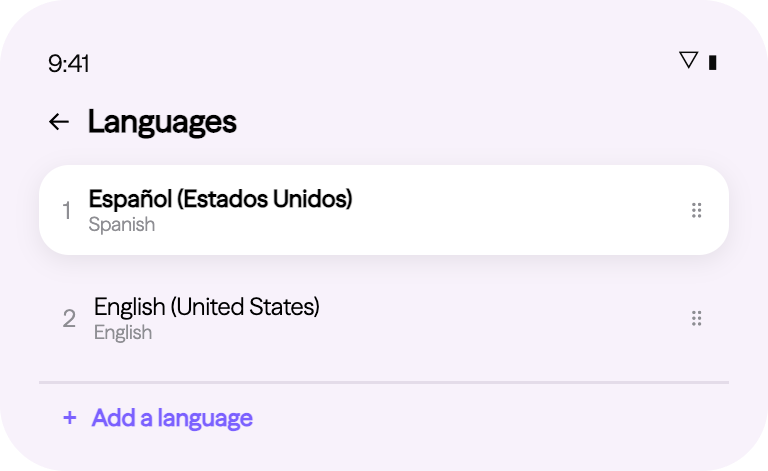
Android
ENGLISH
- Go to "Settings"
- Tap "System"
- Tap "Languages & Input"
- Tap "Languages"
- Place your preferred language at the top
- Vaya a "Configuración"
- Toque en "Sistema"
- Toque en "Idiomas y Entrada"
- Toque en "Idiomas"
- Coloque su idioma preferido arriba
Widget title goes here.
Meta text goes here.
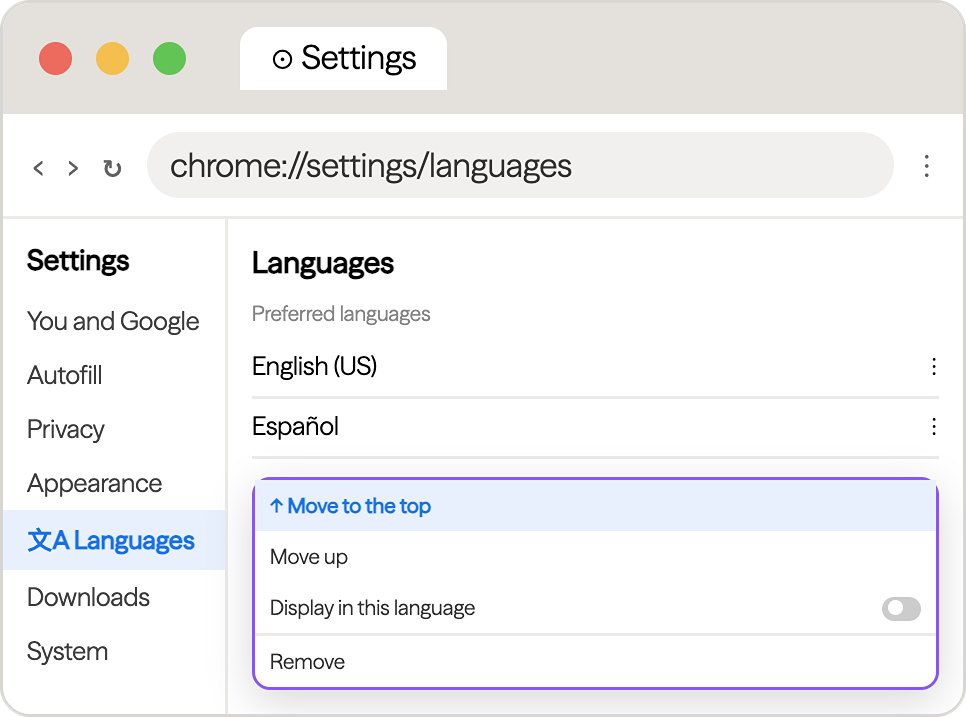
Google Chrome Browser
ENGLISH
- Click the three dots in the top-right corner of the web browser.
- Click "Settings."
- Click "Languages."
- Click "Add languages."
- Select your preferred language and click "Add."
- Click the three dots next to your preferred language.
- Click "Move to the top.
- Haga clic en los tres puntos en la esquina de arriba a la derecha
- Haga clic en "Configuración"
- Haga clic en "Idiomas"
- Haga clic en "Añadir idiomas"
- Seleccione su idioma y haga clic en "Añadir"
- Haga clic en los tres puntos junto a su idioma
- Haga clic en "Mover al principio"
Widget title goes here.
Meta text goes here.
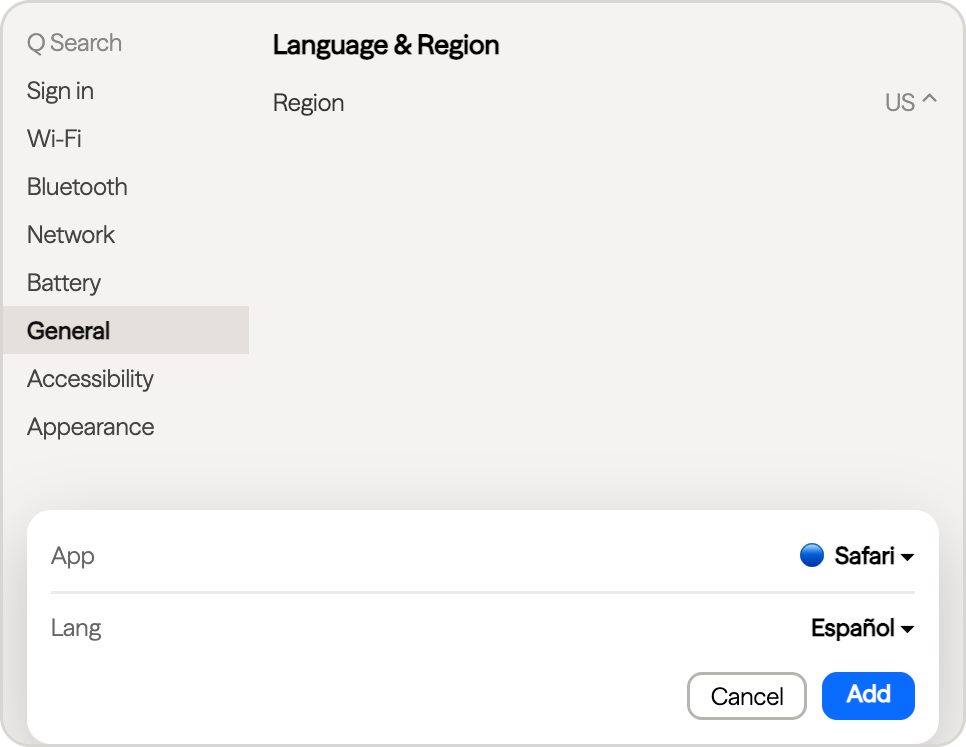
Safari Web Browser
Add a preferred language to Safari through your Mac's system settings. /Agregue un idioma preferido a Safari a través de la configuracrión del sistema de su Mac.
ENGLISH
- Apple menu → "System Settings"
- "General" → "Language & Region"
- Under Applications, click "+"
- Select Safari, choose your language
- Click "Add", relaunch Safari
ESPAÑOL
- Menú Apple → "Configuración del sistema"
- "General" → "Idioma y región"
- En Aplicaciones, clic en "+"
- Seleccione Safari y su idioma
- Añadir y reabrir Safari
Widget title goes here.
Meta text goes here.
Microsoft Edge
ENGLISH
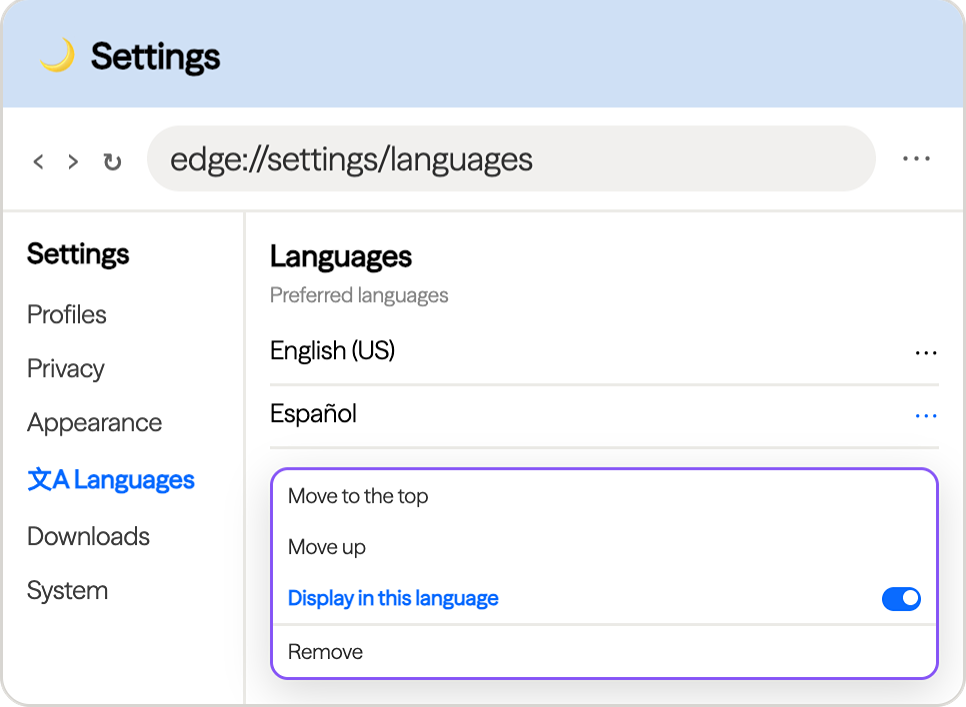
- 1. Click the three dots in the top-right corner of the web browser
- Click "Settings"
- Select "Languages" from the left menu
- Click "Add languages", add your language
- Click the dots next to it, select "Display Edge in this language"
- Restart to apply changes
- Haga clic en los tres puntos en la esquina de arriba a la derecha del navegador
- Seleccione "Idiomas" en el menú izquierdo
- Haga clic en "Agregar idiomas" y añada su idioma
- Haga clic en los puntos junto a él y seleccione "Mostrar Edge en este idioma"
- Reinicie para aplicar los cambios
Widget title goes here.
Meta text goes here.
Firefox
ENGLISH
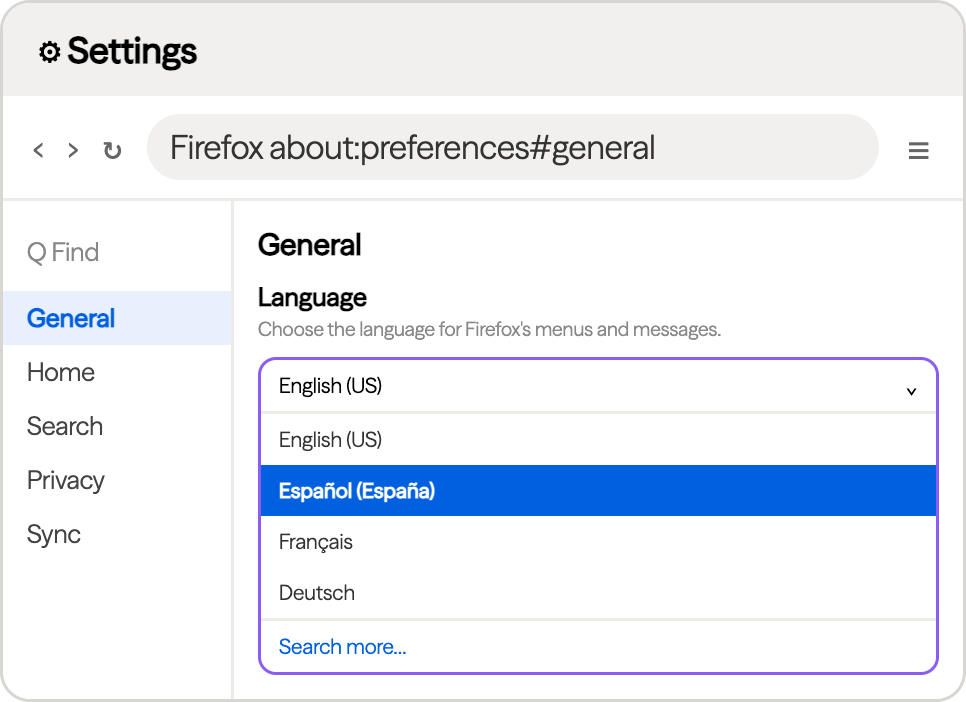
- Click the 3 dots in the top right hand corner of the web browser
- Click settings
- Within settings, select Languages
- Choose your preferred language from the dropdown
- Close and reopen the browser to view changes
ESPAÑOL
- Haga clic en los tres puntos en la esquina de arriba a la derecha del navegador
- Haga clic en configuración
- Dentro de la configuración, seleccione Idiomas
- Elija su idioma preferido en el menú desplegable
- Cierre el navegador y vuelva a abrirlo